Text && Arrays
These notes will cover the essentials of creating text and using arrays in p5.js. All examples will make use of a poem by the poet Jane Wong entitled 10 ALTERNATE ENDINGS courtesy of Yalobusha Review.
10 ALTERNATE ENDINGS by Jane Wong (2019)
1: The flattened road kill squirrel puffs back to life
2: My father never leaves and I sprout more ventricles in my heart
3: I love so richly, I spare millions of pennies in my trust
4: Rosehips bloom in January, pink jellyfish in shattering snow
5: My heart becomes a jar of wildflower honey, does not amber
6: Everyone is so well fed, they cry greasy tears
7: I sit on a balcony in a large city no one has ever heard of, watching the one I love come back to me like rewinding a tape I’ve played many times before
8: The dead ends of my hair spilt to form their own continents
9: My mother reaches the end of her patience and heaves my father’s cigarette stained armchair out the window and some college students catch it from below, grateful
10: I lift the end of the day up like a fat centipede with its legs kicking and say: look, look how much you have
text()
We can draw text to our canvas in p5.js by using the text() function.
The text(a,b,c,d,e) function takes in three to five parameters:
- a: text to be displayed, can by a string or other variable such as a number
- b: x-coordinate of text box
- c: y-coordinate of text box
Optional:
- d: maximum width of text box
- e: maximum height of text box
By default, text will draw from the bottom left corner if you use three parameters. If four or five parameters are used, the text box will draw from the upper left corner, similar to how a square or rectangle is drawn in p5.js. With four or five parameters, the text box created by text() will also be affected by rectMode().
The default justification for text() is left justification.
Similar to other shapes in p5.js, the color of text is controlled by adjusting the fill and stroke.
Examples:
text() with three parameters:
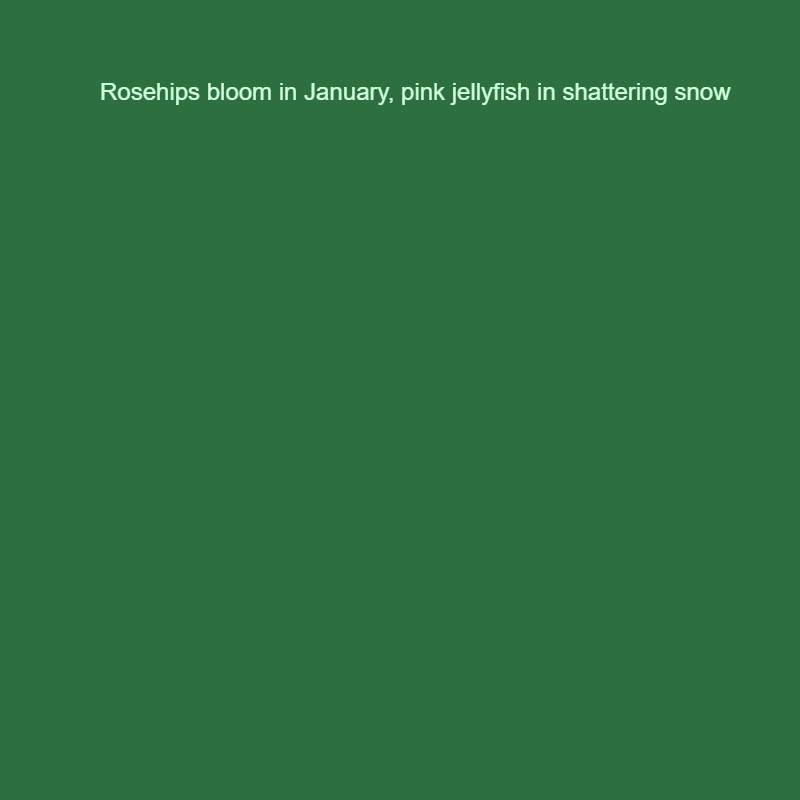
Code
text() with five parameters:
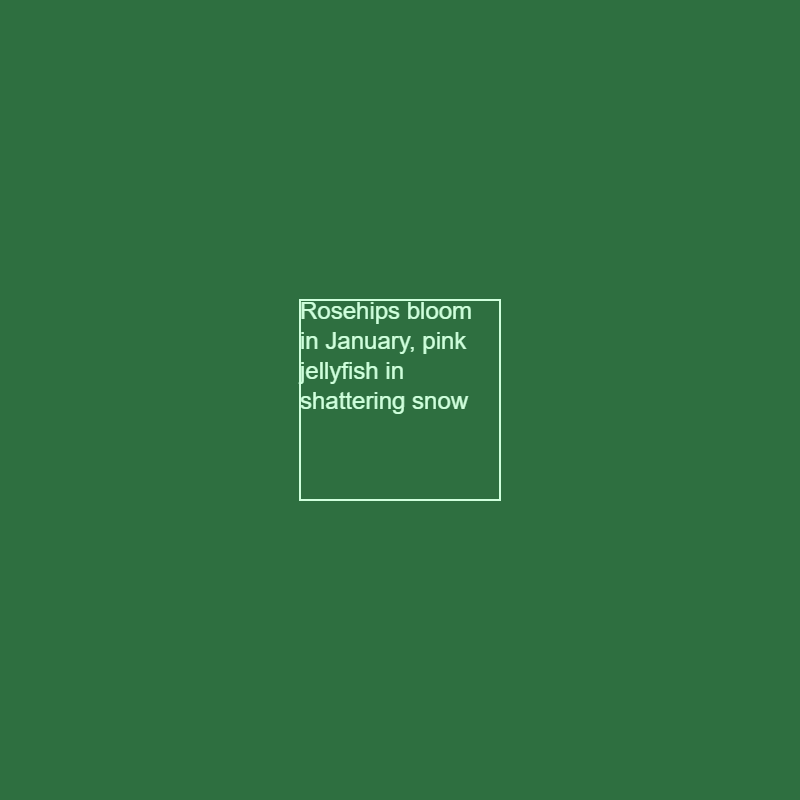
Code
textSize()
textSize() sets the size of text with a single number parameter in pixel dimensions.
Example:

Code
textAlign()
textAlign() will set the alignment of text within p5.js. textAlign() different effects depending on how many parameters are within the text function.
textAlign(a,b) takes up to two parameters:
- a: Horizontal alignment (values of
LEFT,CENTER,RIGHT) - b: Vertical alignment (values of
TOP,BOTTOM,CENTER, orBASELINE)
When using 3 parameters with the text() function, changing the horizontal and vertical alignment with textAlign() will change the behavior of the (x,y) coordinate location of the text() function. When using four or five parameters, textAlign() will affect the alignment of the text within the defined text box.
Examples:
With three parameters, giving textAlign() parameters of (CENTER, CENTER) will cause the text to be drawn from its center position on the x and y axes:

Code
With five parameters, giving textAlign() the parameters of (CENTER,CENTER) will align the text within the center of the defined text box:
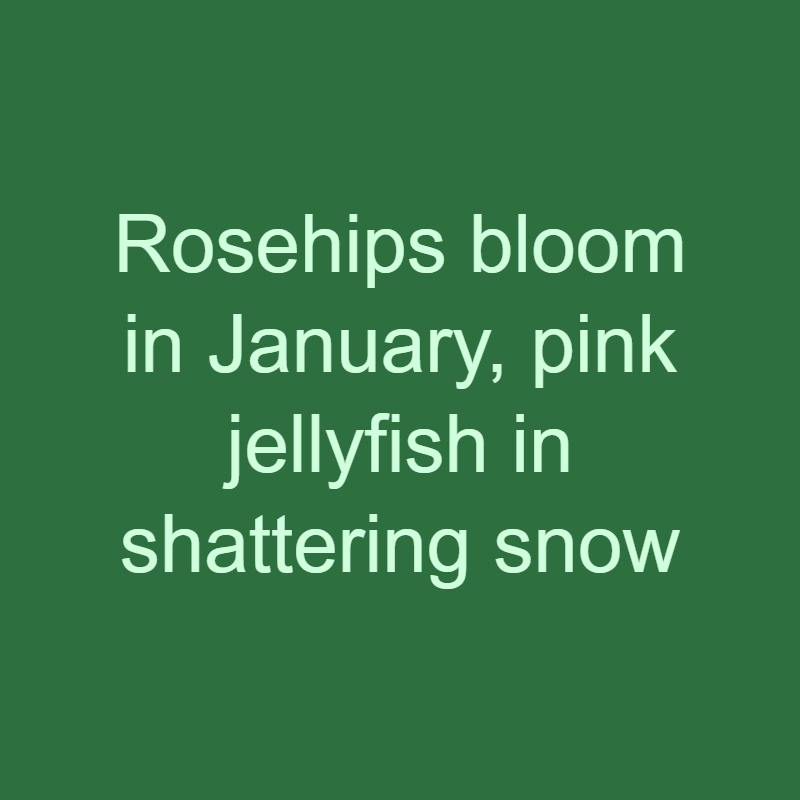
Code
Bottom example:
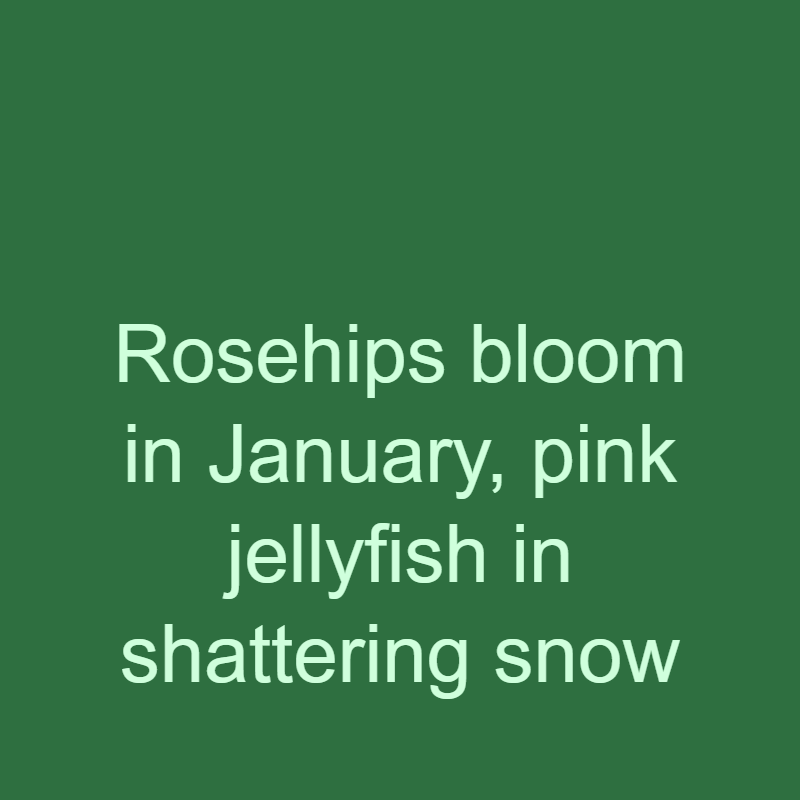
Code
Adding Fonts
Adding a font is p5.js is three step process:
- Download a font as a OpenType (.otf) or TrueType (.ttf) file.
- Add the font to your p5.js sketch
- Load the font in your sketch using the preload() function.
Downloading Fonts
Fonts can be downloaded from a variety of websites including Google Fonts.
Select the font you would like and download the font as an OpenType (.otf) or TrueType (.ttf) file.
For more free font options check our this repository as well as the site Republish
Adding Font
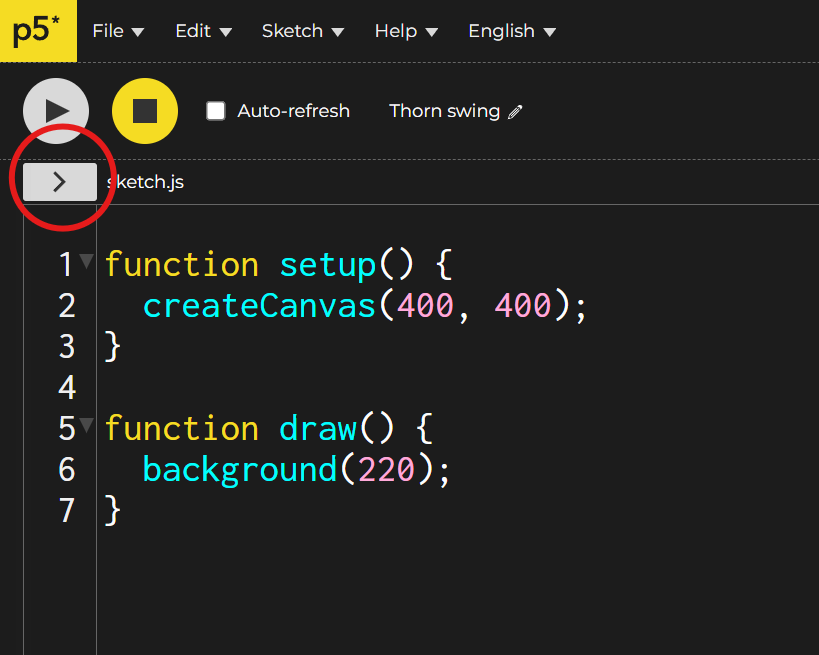
We can add our font to our p5.js sketch by pressing the arrow on the left side of our UI in p5.js.
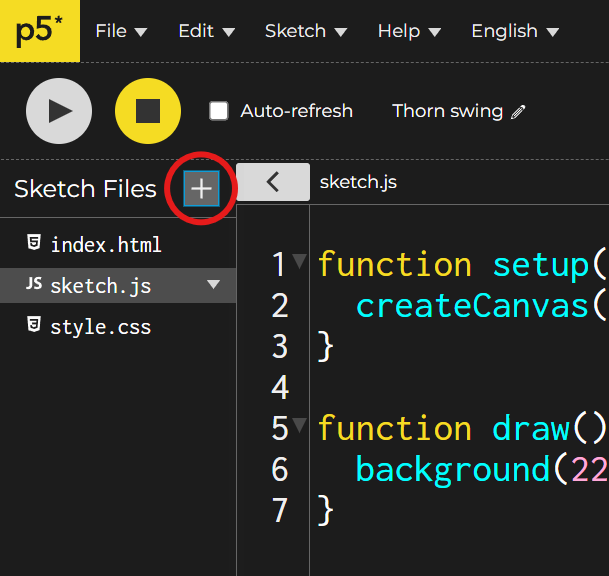
We can then press the plus button, select “Upload file” and upload our font.
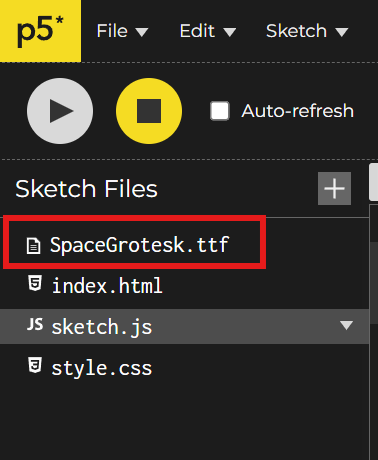
You can rename your font by right clicking on the font and selecting “Rename.”
Load a Font in your P5.js Sketch
To load a font and your sketch, you first need to create the preload() function. The preload() function is called before your sketch runs, allowing you to load in assets you need in your sketch.
preload() Reference.
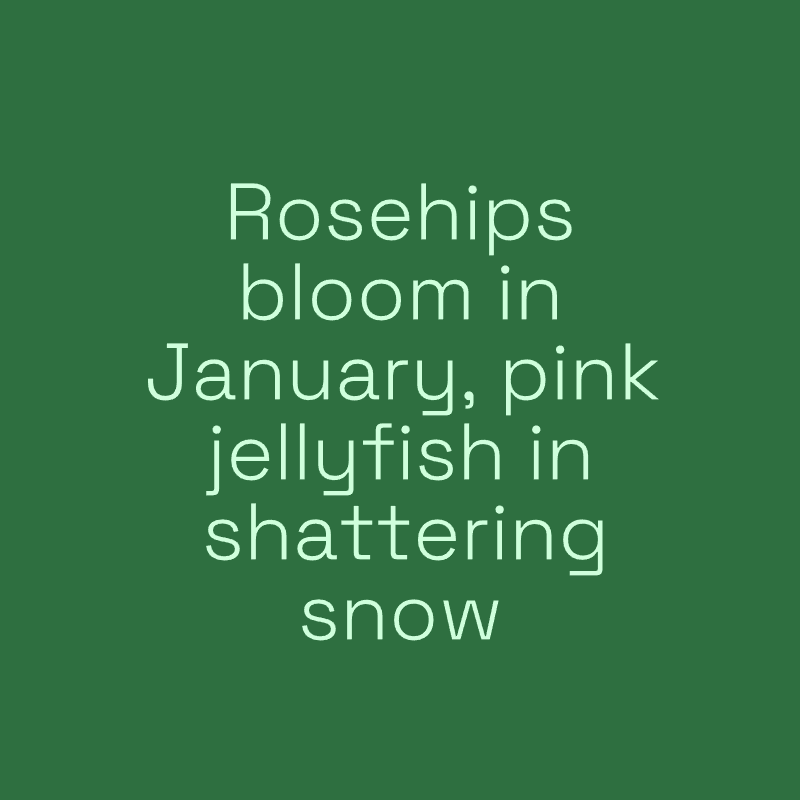
We can load a font in our preload() function by using the function loadFont(). This function will load our font into our scene.
We can set our font in our p5.js sketch by using the function textFont(), providing the variable of our preloaded font.
Example:
Code
let spaceGroteskFont;
let sentence = "Rosehips bloom in January, pink jellyfish in shattering snow";

function preload() {
    spaceGroteskFont = loadFont("SpaceGrotesk.ttf");
}

function setup() {
    createCanvas(400, 400);
}

function draw() {
    background(" #2E6F40");

    noStroke();
    fill("#CFFFDC");

    rectMode(CENTER);

    textFont(spaceGroteskFont);
    textSize(40);
    textLeading(40);
    textAlign(CENTER, CENTER);

    text(sentence, width / 2, height / 2, 300, 300);
}
Arrays
An array is an object within Javascript that can store an ordered list of data.
To create an array within Javascript, we can use the bracket characters, [ ].
I could begin by making an array variable called poem.
Currently, this is an empty array, there are no lines to our poem. We can add lines to our poem, by making a series of strings that are separated by commas.
let poem = ["1: The flattened road kill squirrel puffs back to life",
           "2: My father never leaves and I sprout more ventricles in my heart",
           "3: I love so richly, I spare millions of pennies in my trust",
           "4: Rosehips bloom in January, pink jellyfish in shattering snow"];
Index && Length
Index
Now that I have an array with lines of poem, I can access each element in that array. An element’s position within an array is called its index. When counting elements within an array, the first element always has an index of 0. This continues with the second element having an index of one and so on.
If I wanted to print one particular line of my poem, I can access an element in my array by providing its index. I do this by calling the name of my array followed by open and closed brackets [] containing the index number I want to access.
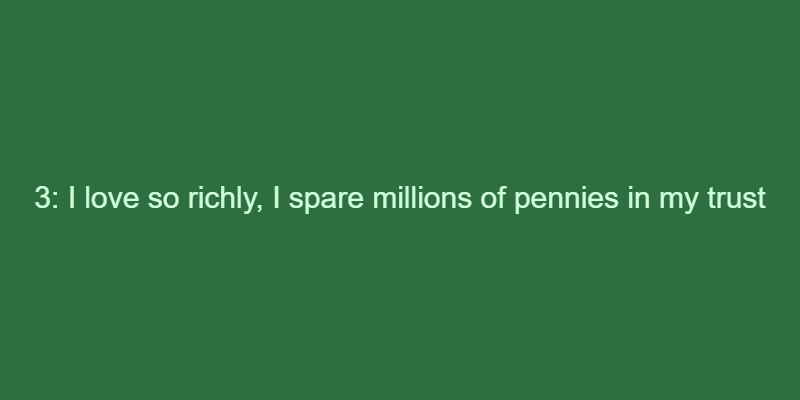
For example, to call the third line of my poem I could code:
Code
let poem = ["1: The flattened road kill squirrel puffs back to life",
        "2: My father never leaves and I sprout more ventricles in my heart",
        "3: I love so richly, I spare millions of pennies in my trust",
        "4: Rosehips bloom in January, pink jellyfish in shattering snow"];

function setup() {
    createCanvas(400, 200);
}

function draw() {
    background(" #2E6F40");
    noStroke();
    fill("#CFFFDC")
    textAlign(CENTER, CENTER);
    textSize(15);
    text(poem[2], width/2, height/2);
}
Index and Variables
We also use a variable to determine which index we want our array to display.
If I create a variable named index, I can increment this value to change which line of the poem I display.
If I continue to increase my index, however, eventually the number value of the index variable will be larger than the number of elements in my array. For example, if index equals 4, I would be looking for the 5th element in my array which does not exist as there are only 4 lines in my poem. In order to prevent this index out of bounds error, I need to know the length of my array.
Length
In order to limit the amount my index is increased by, I can use the length property of my array to see how long my array is.
This will return the total length of my array, or, in other words, how many elements are in my array. In the case ofpoem, poem.length would return a value 4.
I can use this length value to make sure my index variable never goes beyond the length of my array:
In this example, I am checking to see if my index is less than then length minus 1. The reason I use minus 1, is that the number of the last index in the array will always be equal to the total length minus 1. For example, since our poem has 4 lines, it has a length of 4 and the index of the last element is 3.Click to progress poem
Code
let poem = ["1: The flattened road kill squirrel puffs back to life",
"2: My father never leaves and I sprout more ventricles in my heart",
"3: I love so richly, I spare millions of pennies in my trust",
"4: Rosehips bloom in January, pink jellyfish in shattering snow"];
let index = 0;
function setup() {
createCanvas(400, 200);
}
function draw() {
background(" #2E6F40");
noStroke();
fill("#CFFFDC")
textAlign(LEFT, CENTER);
textSize(12);
text(poem[index], 20, height/2);
}
function mousePressed(){
  if(index<poem.length-1){
    index++;
  }else{
    index = 0;
  }
}
Arrays and Interaction
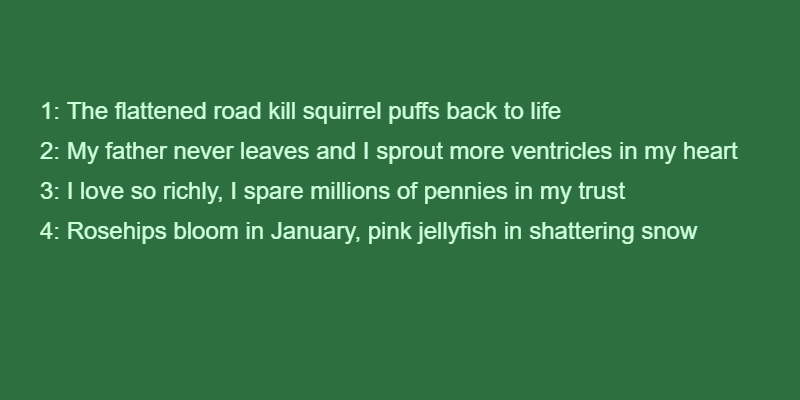
Since elements of an array are ordered and can be accessed with an index value, I can use a for loop to iterate over my array to access all of its elements. I could use a for loop to draw all of the lines of my poem using a variable as the index value, check to see if it is less than the length value of my array.
Code
let poem = [
"1: The flattened road kill squirrel puffs back to life",
"2: My father never leaves and I sprout more ventricles in my heart",
"3: I love so richly, I spare millions of pennies in my trust",
"4: Rosehips bloom in January, pink jellyfish in shattering snow",
];

function setup() {
    createCanvas(400, 200);
}

function draw() {
    background(" #2E6F40");
    noStroke();
    fill("#CFFFDC");
    textAlign(LEFT, TOP);
    textSize(12);
    let y = 50;
    for (let i = 0; i < poem.length; i++) {
        text(poem[i], 20, y);
        y = y + 20;
    }
}
Slice, Splice and Push
So far we have been using an array with a preset list of values, however, often when coding with arrays, we want to be able to add or remove elements to create dynamic changing arrays.
As an example, let’s say to print this poem in a random order to create some algorithmic poetry.
The first thing I need to do is to create a new variable that will hold my poem. This variable will be an empty array.
I can usemousePressed() to create my random poem.
The way I can create a random poem is by having my empty array for my new poem, called randomPoem as well a temporary array that contains the values of my original poem.
In order to create the poem, I need to add lines to my new poem randomly, while also removing that same line from my temporary poem array until my temporary poem is empty.
To create a temporary copy of my original poem that I can use to edit, I can use the array function slice(). slice() will make a copy of an array.
I can choose a random line for my poem by wrapping my random() function in the function int(), which will convert the decimal result of my random into a whole number or integer.
randomPoem and remove it from my tempPoem.
To add an element to an array, I can use the function push(), which will push an element into the end of my array. We can give a parameter to push() to tell it what to add to the array.
I can then remove that element from my temporary array by using the function splice(). For parameters, I need to tell splice the index I want to remove, and how many elements I want to remove.
function mousePressed() {
  randomPoem = [];
  let tempPoem = poem.slice();

  for (let i = 0; i < poem.length; i++) {
    let randomLine = int(random(0, tempPoem.length));
    randomPoem.push(tempPoem[randomLine]);
    tempPoem.splice(randomLine, 1);
  }
}
After adding some text styling and drawing my text, I can get this result:
Click to generate poem
Code
let poem = [
"The flattened road kill squirrel puffs back to life",
"My father never leaves and I sprout more ventricles in my heart",
"I love so richly, I spare millions of pennies in my trust",
"Rosehips bloom in January, pink jellyfish in shattering snow",
"My heart becomes a jar of wildflower honey, does not amber",
"Everyone is so well fed, they cry greasy tears"
];

let randomPoem = [];

function setup() {
    createCanvas(400, 200);
}

function draw() {
    background(" #2E6F40");
    noStroke();
    fill("#CFFFDC");
    textAlign(LEFT, CENTER);
    textLeading(12);
    textSize(12);

    for (let i = 0; i < randomPoem.length; i++) {
        y = map(i, 0, randomPoem.length -1, 50, height - 50);
        text(randomPoem[i], 20, y, 380);
    }
}

function mousePressed() {
    randomPoem = [];
    let tempPoem = poem.slice();

    for (let i = 0; i < poem.length; i++) {
        let randomLine = int(random(0, tempPoem.length));
        randomPoem.push(i + 1 + ": " + tempPoem[randomLine]);
        tempPoem.splice(randomLine, 1);
    }
}