Images && Functions
Image
loadImage()
To load an image into p5.js, we need to use the preload() and loadImage() function.
Begin by uploading your image file to your p5.js sketch.
I’ll be using this image named rainbow.png. This image was sourced from the Public Domain Image Archive and edited to be 400 by 400 pixels.
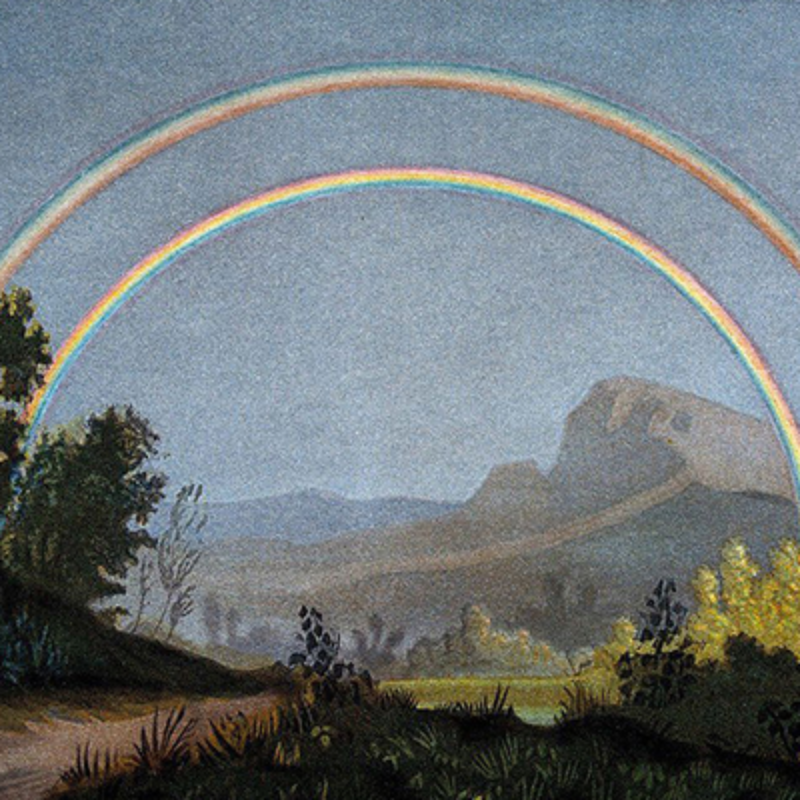
After the image has been uploaded, use the preload() and loadImage() function to load in your image.
image()
To draw an image to our screen, we can use the image() function. The image() function in p5.js and allows for a lot of customization through its many parameters. We’ll be focusing on the first five parameters.
image(img, x, y, width, height)
img= image to displayx= x position to draw image (top left corner by default)y= y position to draw image (top right corner by default)width= width to draw imageheight= height to draw image
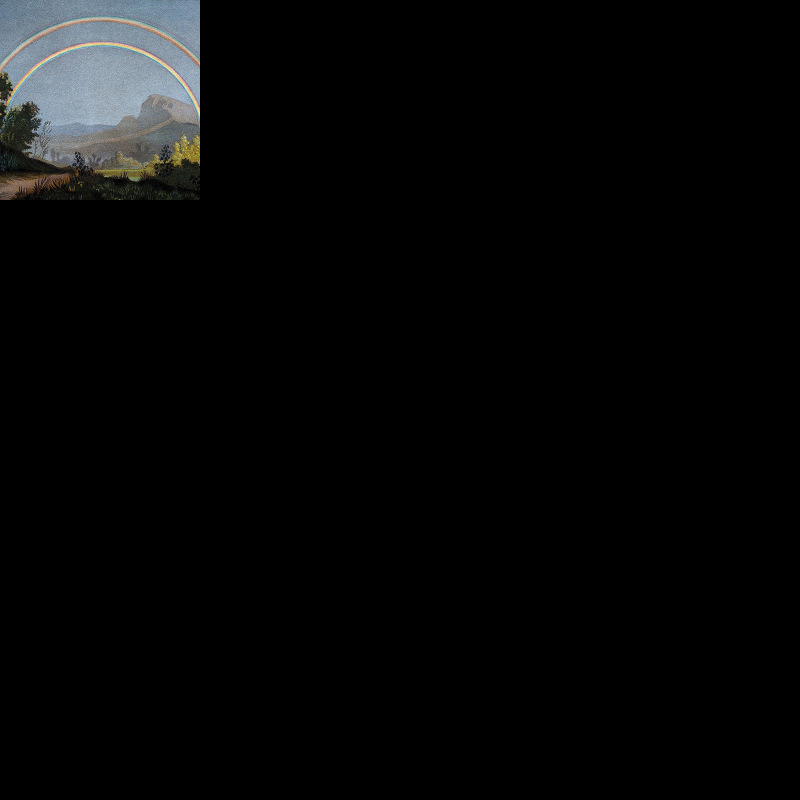
Code
img.width and img.height
We can also size our image based on our image’s width and height by calling .width and .height.
Code
imageMode()
Similar to rectMode(), we can use imageMode() with the parameter of CENTER or CORNER to change where our image is drawn from.
Example:
Using imageMode(CENTER) will place the center of our image on the provided x and y parameters.
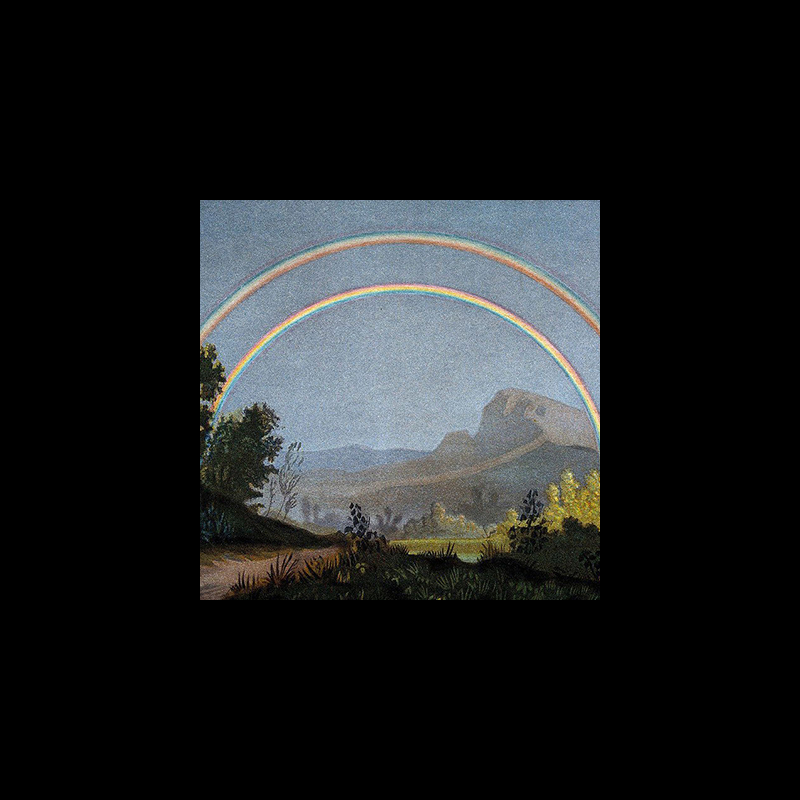
Code
Functions
Throughout our time of using p5.js thus far, we have been writing and calling functions.
We have been calling functions such as:
or
We also be writing p5.js defined functions such as:
or
When using p5.js and JavaScript, or other programming languages, we can also write our own functions. Why would we write our own functions if we can just write our code in preexisting functions within the p5.js library such asdraw(), setup(), ormousePressed()?
There are two main reasons for creating your own functions in programming: Modularity and Reusability
- Modularity: functions allow us to separate parts of code so that we can keep our code more organized, and, as our programs get more complex, have a clearer understanding of what each part of our code is doing.
- Reusability: functions also allow us to make code that we write reusable. We can see this in the p5.js library in which we can reuse the function of circle() over and over again to get different results. We can also make our own functions that are modular to reuse code that we have written in different parts of our sketch.
Modularity and Defining Functions
To define a function:
- Use the keyword
function - Name your function (typically camelCase)
- Open and closed parentheses
() - Open and close curly brackets
[] - Write the code of your function
Example:
A function named hiddenText
One of the main uses of function is modularity, or, in other words, separating out code into its own functions to make our code both modular and more readable.For example, let’s say I have this code that draws an image, and places hidden text on that image I need to mouse over.
let img;

function preload() {
  img = loadImage("rainbow.png");
}

function setup() {
  createCanvas(400, 400);
}

function draw() {
  background(255);

  image(img, 0, 0, img.width, img.height);

  textAlign(CENTER, CENTER);
  textSize(20);
  noStroke();
  fill(255);
  let x = 50;
  let y = 50;
  let radius = 40;
  let word = "Rainbow";
  textAlign(CENTER, CENTER);
  if (dist(x, y, mouseX, mouseY) < radius) {
    text(word, x, y);
  } else {
    fill(0, 50);
    circle(x, y, radius * 2);
  }
}
With this sketch, I can isolate all the code that handles drawing the hidden text and separate it into the hiddenText() function I created earlier.
function hiddenText() {
  textAlign(CENTER, CENTER);
  textSize(20);
  noStroke();
  fill(255);
  let x = 50;
  let y = 50;
  let radius = 40;
  let word = "Rainbow";
  textAlign(CENTER, CENTER);
  if (dist(x, y, mouseX, mouseY) < radius) {
    text(word, x, y);
  } else {
    fill(0, 50);
    circle(x, y, radius * 2);
  }
}
Lastly, within my draw() function, I can call the function I created:
Code
let img;

function preload() {
 img = loadImage("rainbow.png");
}

function setup() {
createCanvas(400, 400);
}

function draw() {
 background(255);

 image(img, 0, 0, img.width, img.height);

 hiddenText();
}

function hiddenText() {
 textAlign(CENTER, CENTER);
 textSize(20);
 noStroke();
 fill(255);
 let x = 50;
 let y = 50;
 let radius = 40;
 let word = "Rainbow";
 textAlign(CENTER, CENTER);
 if (dist(x, y, mouseX, mouseY) < radius) {
     text(word, x, y);
 } else {
    fill(0, 50);
    circle(x, y, radius * 2);
 }
}
Reusability and Parameters
While modularity allows us to separate parts of our code into different functions, by focusing also on reusability, we can make the functions we create reusable. To make functions reusable, we need to give our function parameter definitions. We have already been using parameters so far in the course for example when we call circle(200,200,50). 200,200, and 50 are parameters that we provide to the circle() function that create different results.
When we define our own functions, we can also create our own parameters that control how the function operates.
For example, if I wanted my hiddenText() parameter to draw different circles with different text at different positions, I can turn those variables into parameters that I define when I call the function:
x, y, and word within my function, I can now define these parameters when I call the function in draw():
Code
```js let img;
function preload() { img = loadImage("rainbow.png"); }
function setup() { createCanvas(400, 400); }
function draw() { background(255);
image(img, 0, 0, img.width, img.height);
  hiddenText("double", 200, 300);
  hiddenText("rainbow", 100, 50);
}
function hiddenText(word, x, y) { textAlign(CENTER, CENTER); textSize(20); noStroke(); fill(255);
let radius = 40;
textAlign(CENTER, CENTER);
if (dist(x, y, mouseX, mouseY) < radius) {
text(word, x, y);
} else {
fill(0, 50);
circle(x, y, radius * 2);
}
}
```
Returning values from functions
In addition to functions taking in values as parameters, functions can also return values. I can return values from a function by using the keyword return.
For example, I want to make my above sketch even more modular and reusable by separating out the functionality for detecting the mouse near my hidden circle.
The code for currently checking my mouse detection:
I can separate this code out into its own function and provide it with return values of either true or false:
function isMouseNear(x, y, radius) {
if (dist(x, y, mouseX, mouseY) < radius) {
return true;
} else {
return false;
}
}
I can then replace my original code with this function:
if (isMouseNear(x, y, radius)) {
text(word, x, y);
} else {
fill(0, 50);
circle(x, y, radius * 2);
}
Code
let img;
function preload() {
img = loadImage("rainbow.png");
}
function setup() {
createCanvas(400, 400);
}
function draw() {
background(255);
image(img, 0, 0, img.width, img.height);

hiddenText("double", 200, 300);
hiddenText("rainbow", 100, 50);
}
function hiddenText(word, x, y) {
textAlign(CENTER, CENTER);
textSize(20);
noStroke();
fill(255);
let radius = 40;
textAlign(CENTER, CENTER);
if (isMouseNear(x, y, radius)) {
text(word, x, y);
} else {
fill(0, 50);
circle(x, y, radius * 2);
}
}
function isMouseNear(x, y, radius) {
  if (dist(x, y, mouseX, mouseY) < radius) {
    return true;
  } else {
    return false;
  }
}
mouseIsPressed
So far in this course we have used the mousePressed() function to detect if a mouse is pressed. We can also use the mouseIsPressed boolean variable to detect if the mouse is being pressed at any given moment.
For example, I can use the mouseIsPressed variable in my above sketch to detect when a circle has been pressed and then draw the next circle. To do this I can use a number variable that keeps track of what circle I am on as well as the total number of circles, incrementing that current circle when the mouse is pressed:
Code
let img;
let currentText = 0;
let totalText = 3;

function preload() {
img = loadImage("rainbow.png");
}

function setup() {
createCanvas(400, 400);
}

function draw() {
background(255);

image(img, 0, 0, img.width, img.height);

if (currentText == 0) {
    hiddenText("look", 200, 200);
}
if (currentText == 1) {
    hiddenText("double", 200, 300);
}
if (currentText == 2) {
    hiddenText("rainbow", 100, 50);
}

console.log(currentText);
}

function hiddenText(word, x, y) {
textAlign(CENTER, CENTER);
textSize(20);
noStroke();
fill(0,0,255);

let radius = 40;

textAlign(CENTER, CENTER);
if (isMouseNear(x, y, radius)) {
    if (mouseIsPressed) {
    currentText += 1;
    if (currentText > totalText - 1) {
        currentText = 0;
    }
    }
    text(word, x, y);
} else {
    fill(0, 50);
    circle(x, y, radius * 2);
}
}

function isMouseNear(x, y, radius) {
if (dist(x, y, mouseX, mouseY) < radius) {
    return true;
} else {
    return false;
}
}