GitHub Pages
In order to host our websites on the internet, we will be using GitHub Pages. GitHub Pages is a free web-hosting service provided by GitHub that publishes a website directly from a GitHub repository.
This tutorial will cover the process of making a GitHub pages site:
Setting up a GitHub Pages Site
1. Make a GitHub account
Navigate to GitHub.com to make a free GitHub account if you do not have one already. You also sign up for an education account that has extra benefits.
2. Make New Repository
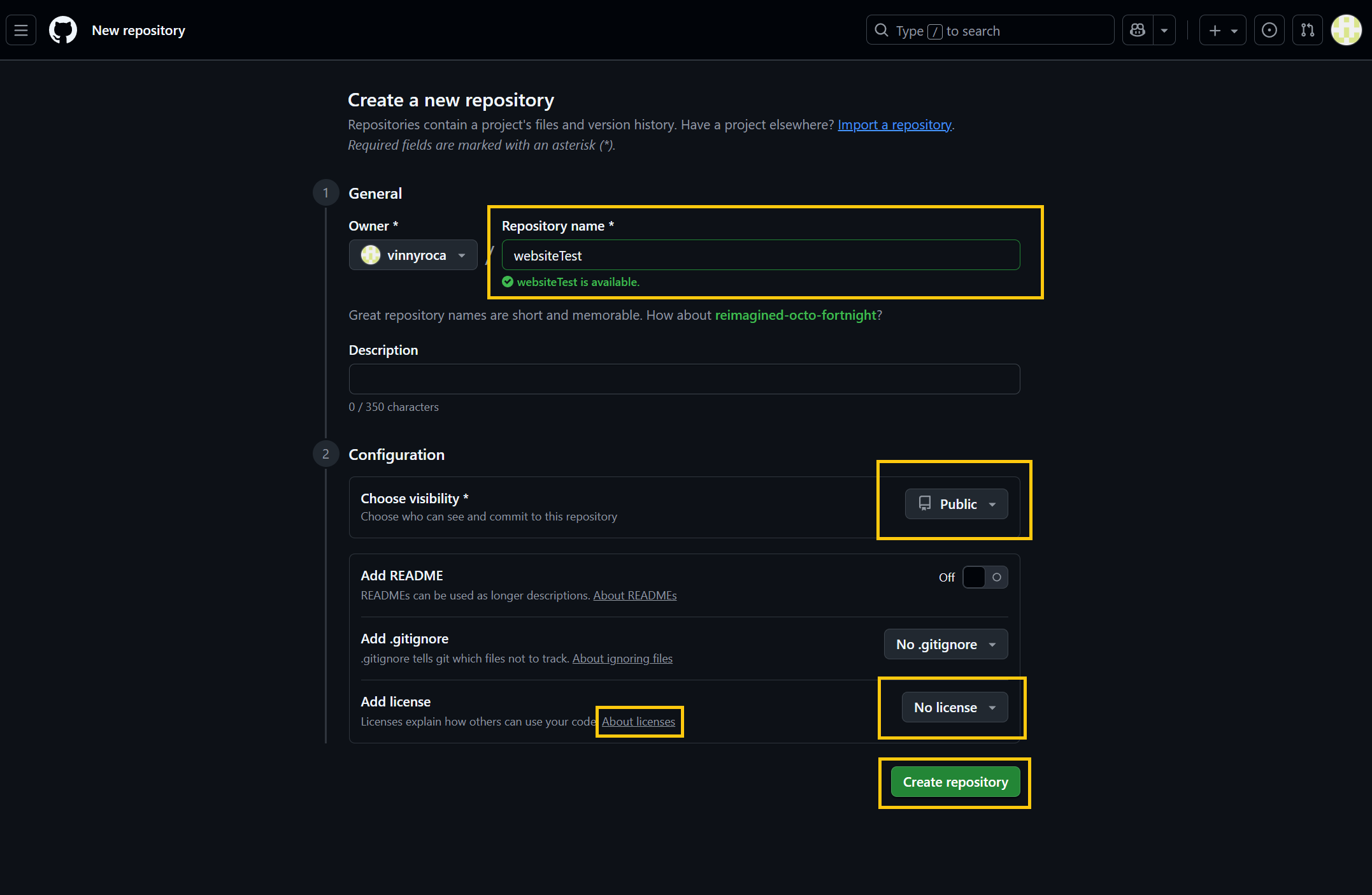
After you make a GitHub account, create a new Repository that will host your website code.
After clicking on new repository:
- Name your repository using Repository name input box - this name will be included in the web address of your website
- Set your visibility to Public
- Choose what license you want for your website. Since your repository will be public, you can decide how you want others to be able to access the code and content on your repository and site.
3. Upload Your Files to Your Repository
There are many ways to connect files to your repository. Most commonly, programmers will use GIT to connect their local files to a repository. For ease of use, we will be uploading files using the upload feature within GitHub.
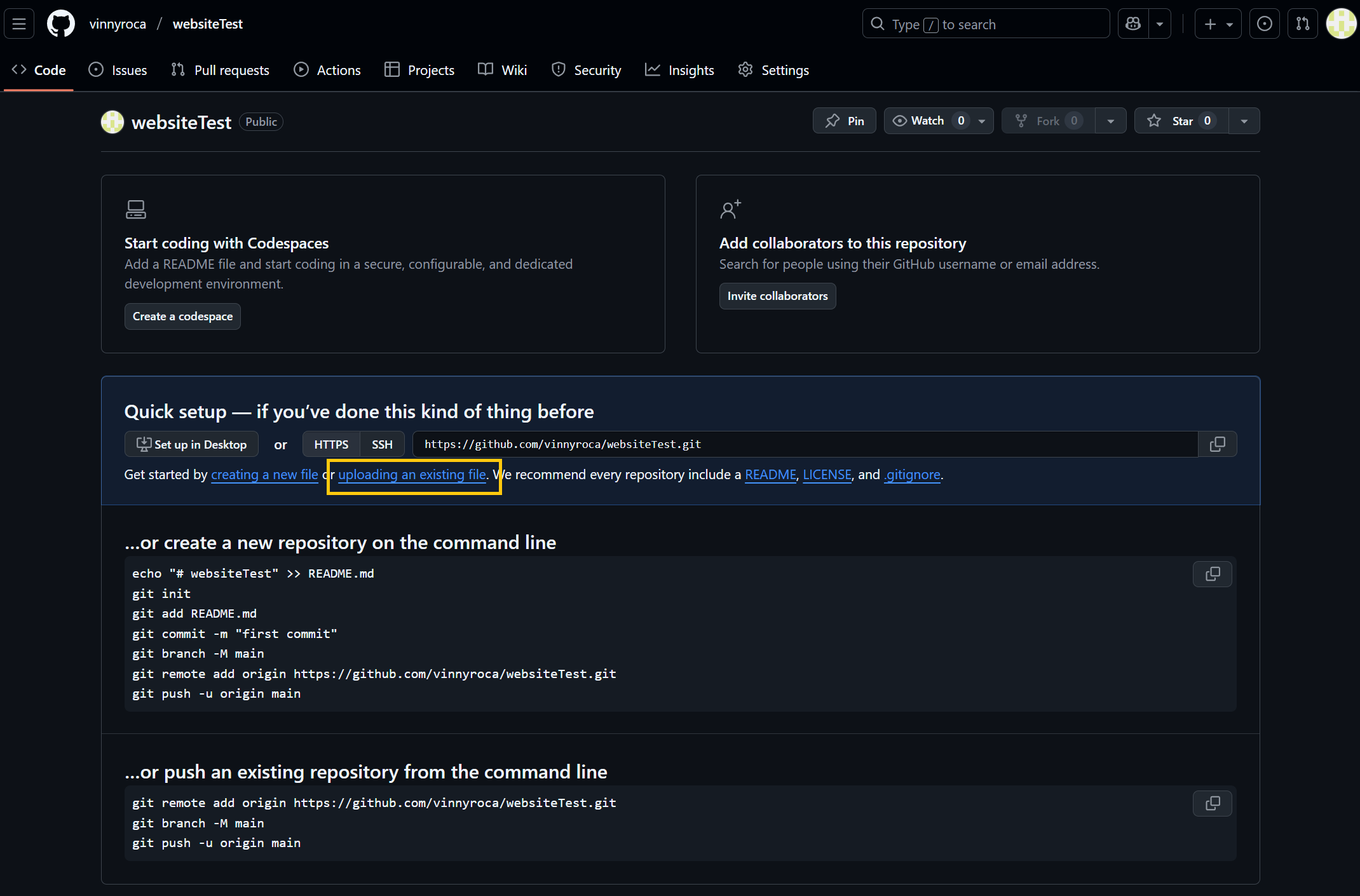
After creating your repository:
- Click on “uploading an existing file” on your repository page
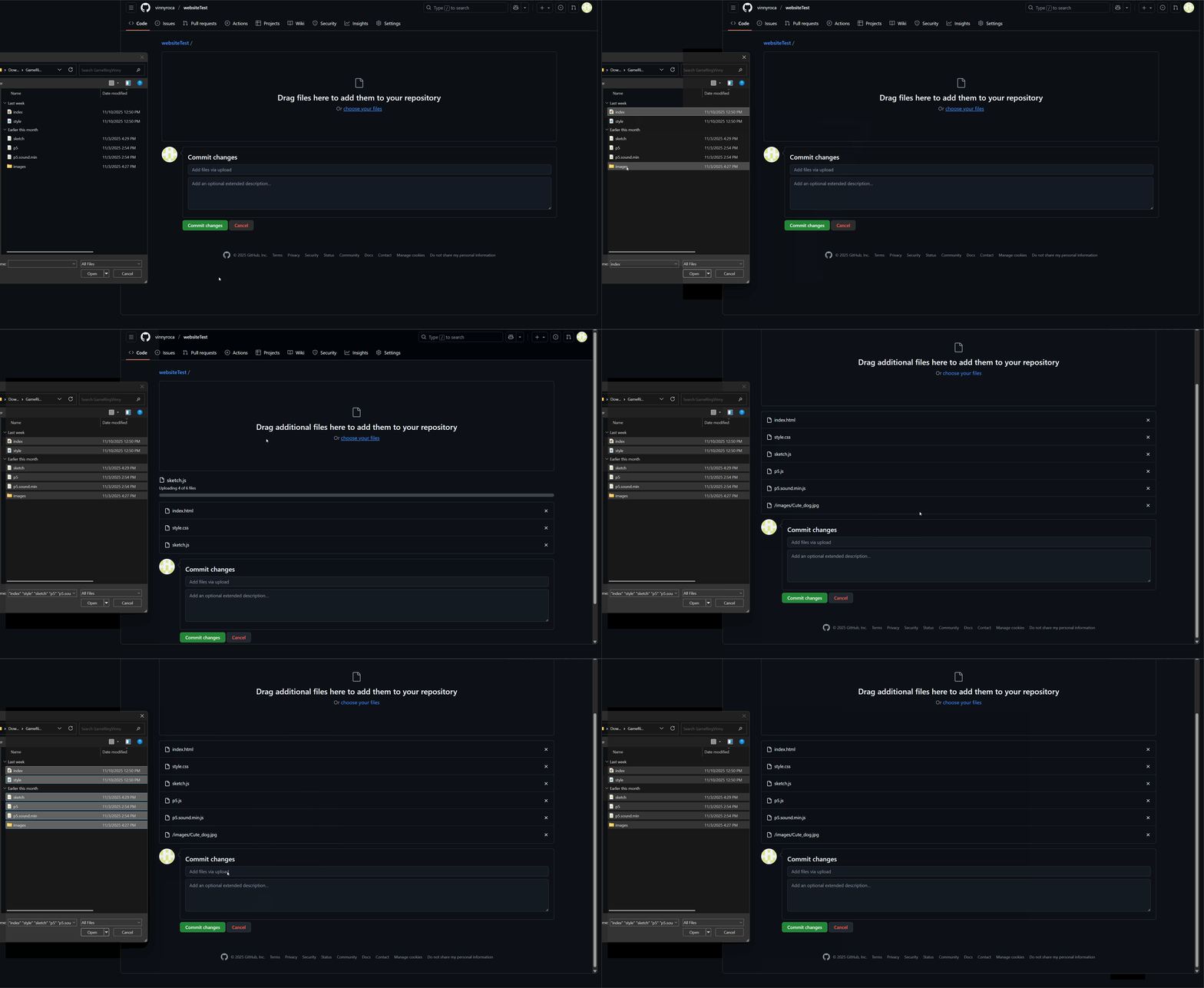
- Drag or upload all of the files from your website folder into the repository
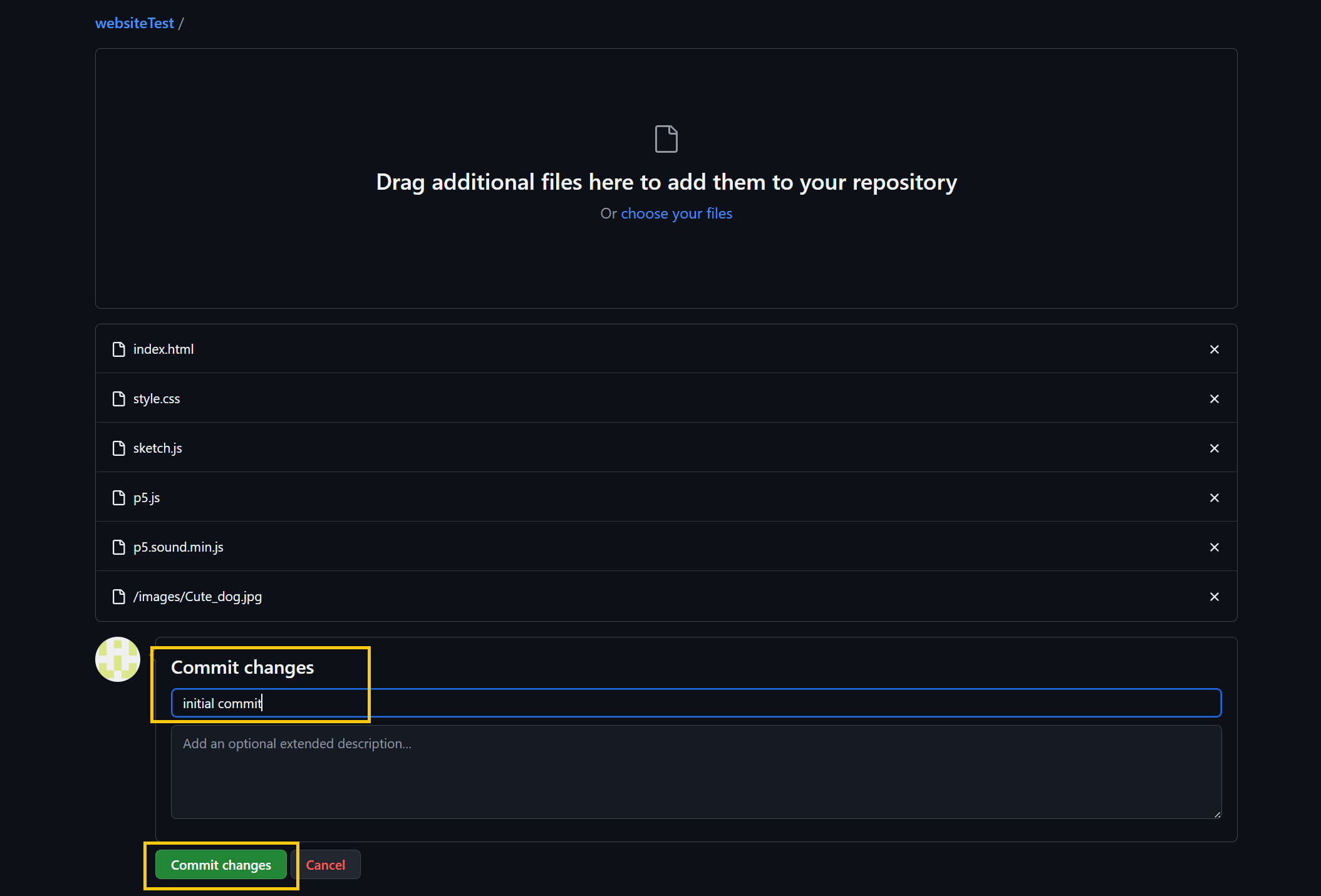
- Commit the changes - you must add a description of the commit
Updating Files
GitHub will automatically update files of the same name if upload them to your repository. For example, if you make changes to any of the code files, you only need to reupload them to your repository and commit the changes. GitHub will automatically update these files to match the newly uploaded files. It is best practice to only reupload files that you have changed.
To reupload a file:
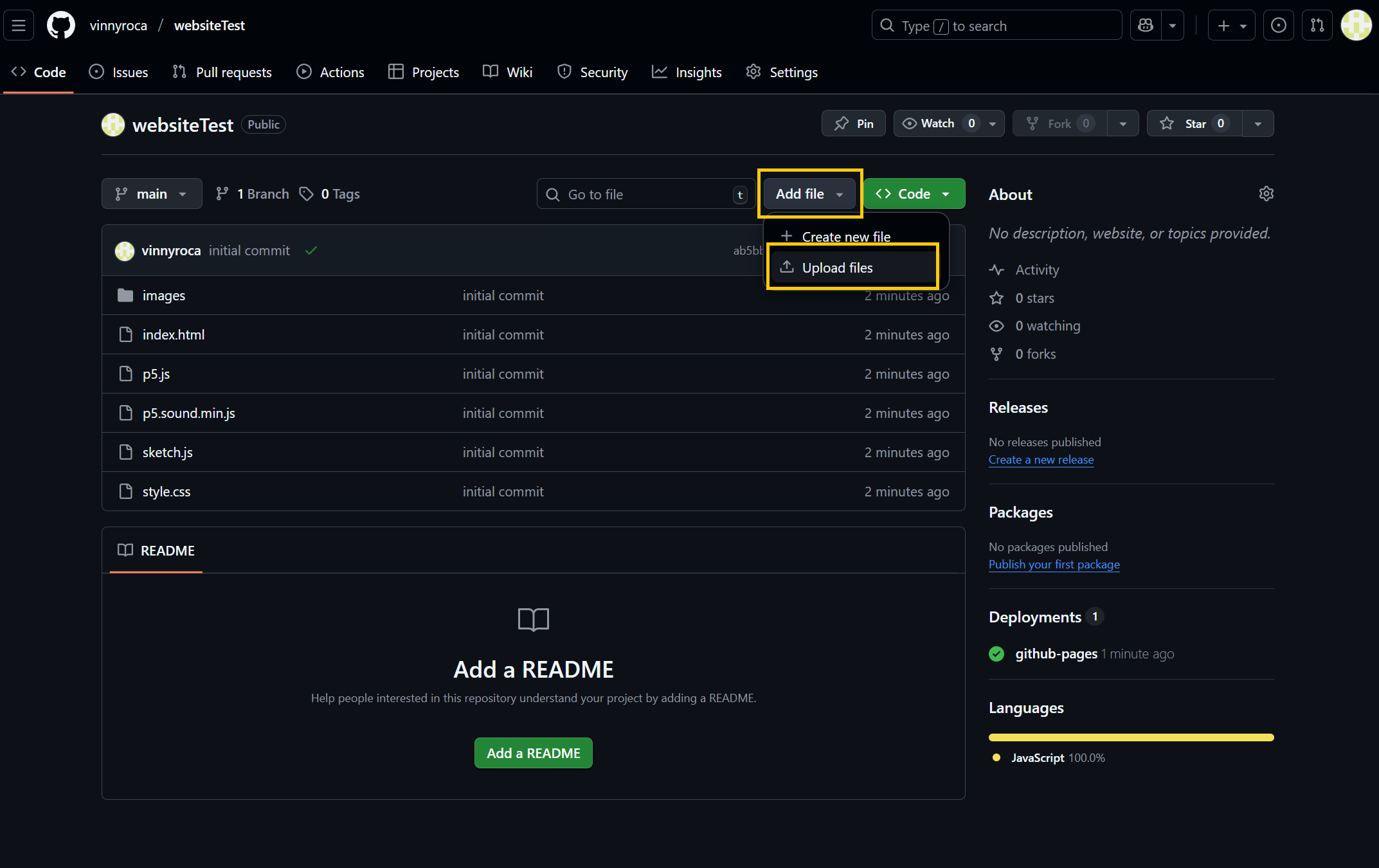
- In your repository home page, navigate to Add File > Upload files
- Commit any changes to reuploaded files
4. Setting up GitHub pages and Viewing Your Site
Once your files have been uploaded to your repository, you can publish your site as a GitHub pages page. This site will be a live site that can be accessed at UserName.github.io/RepositoryName/
To set up your Pages site:
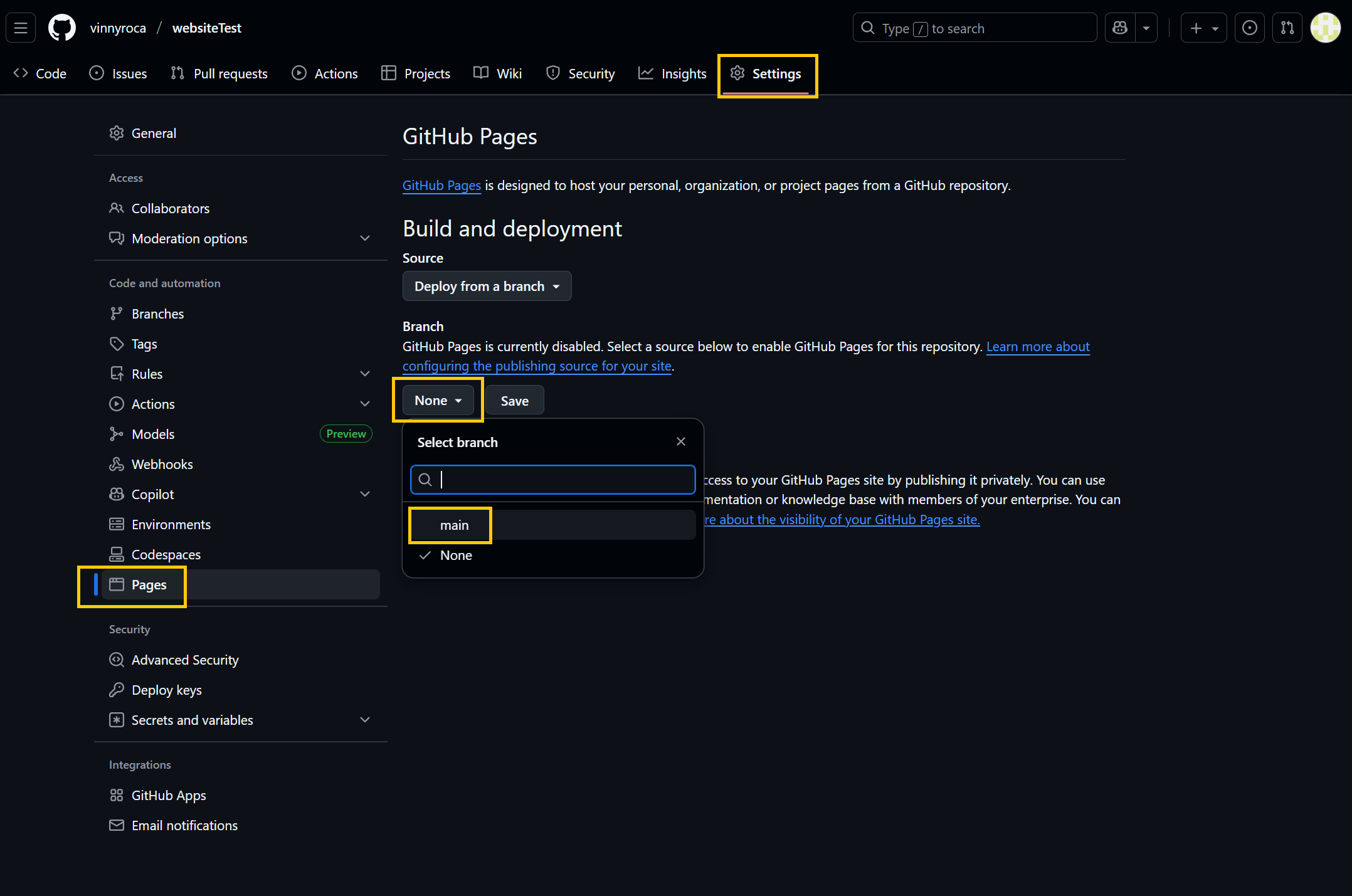
- Navigate to Settings in the top menu bar in your repository
- In the left pane, navigate to Pages
- Within GitHub Pages settings, set Branch to main and press save
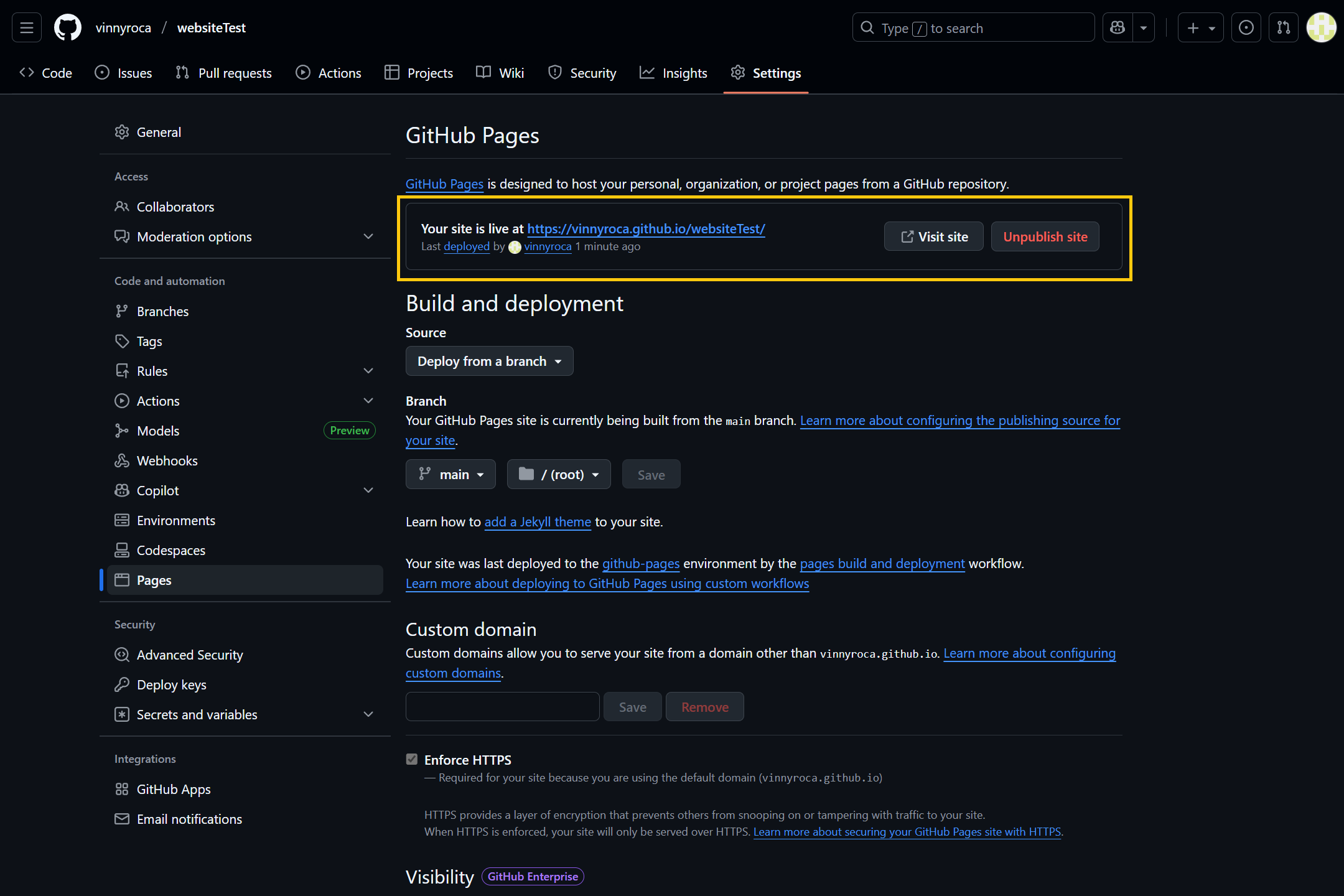
Within a few minutes, your website will be live. You can find the address for the site by navigating back to the Pages settings of your site.
Optional: Custom Domain
If you wish to have a custom domain for your site, you can follow these instructions provided by GitHub